> For the complete documentation index, see [llms.txt](https://docs.decube.io/llms.txt). Markdown versions of documentation pages are available by appending `.md` to page URLs; this page is available as [Markdown](https://docs.decube.io/data-quality-v2/alerts/alert-channels/microsoft-teams.md).
# Microsoft Teams
Create a Teams Workflow webhook and post Data Quality alerts into a Teams channel.
Teams receives alerts through a webhook URL that you generate in Teams itself, using the Workflows app. Create the Workflow on the channel that should receive the alerts, then paste its URL into the rule.
## Microsoft Teams: Add Workflows app
You can use the Workflows app available in Microsoft Teams to generate a webhook URL to send Decube incident alerts to.
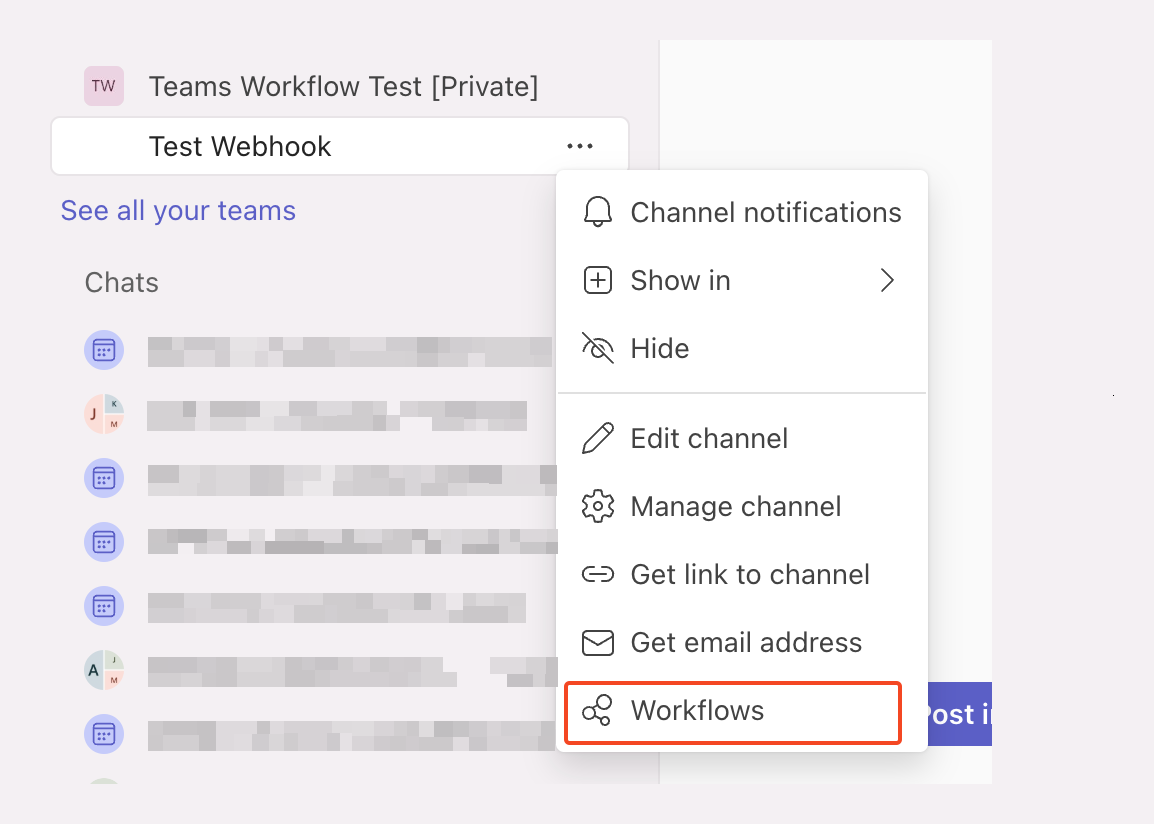
1. Go to the Workflows app. You can do this by hovering over the ellipsis menu of the Teams channel and selecting Workflows in the dropdown.
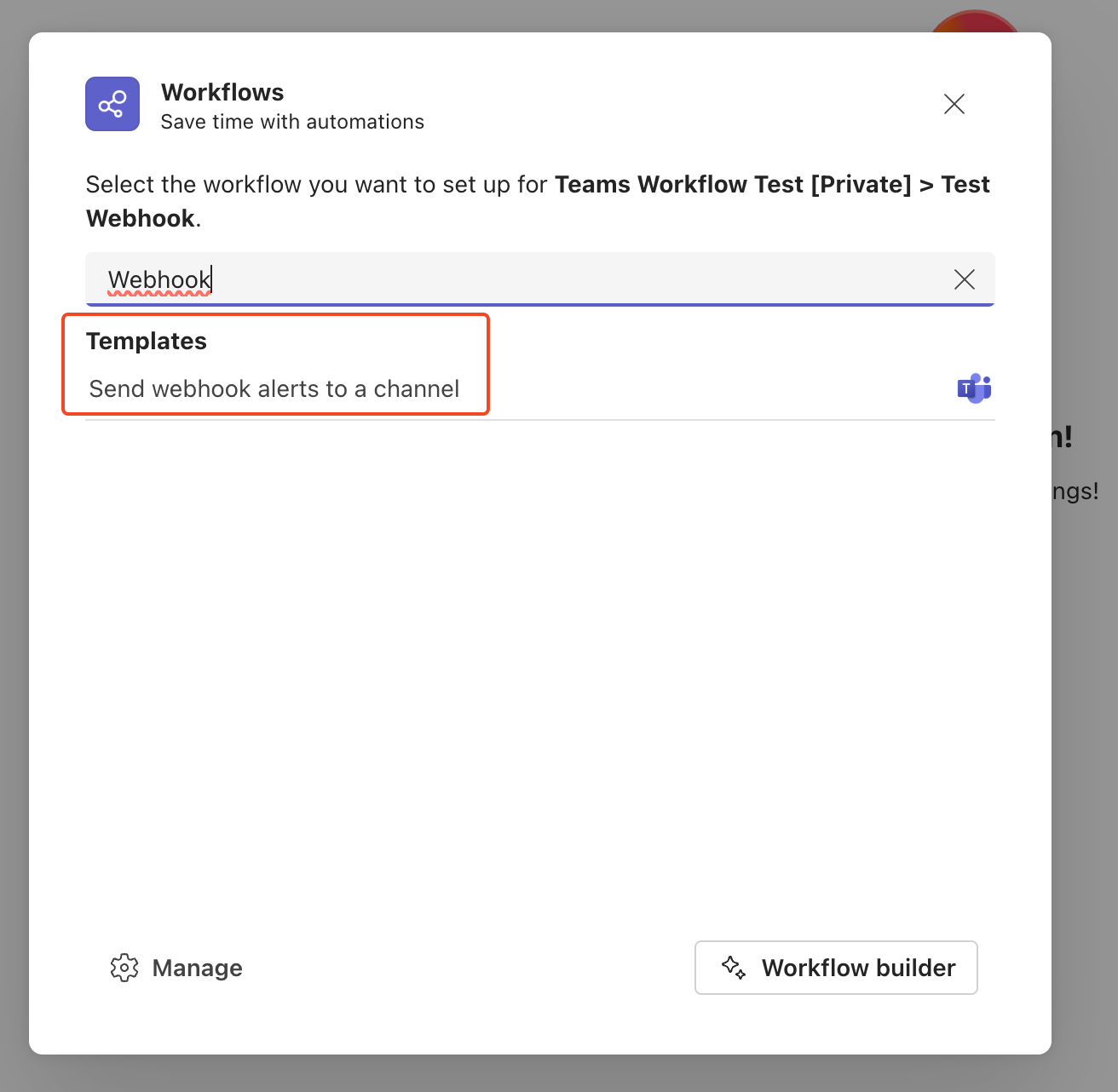
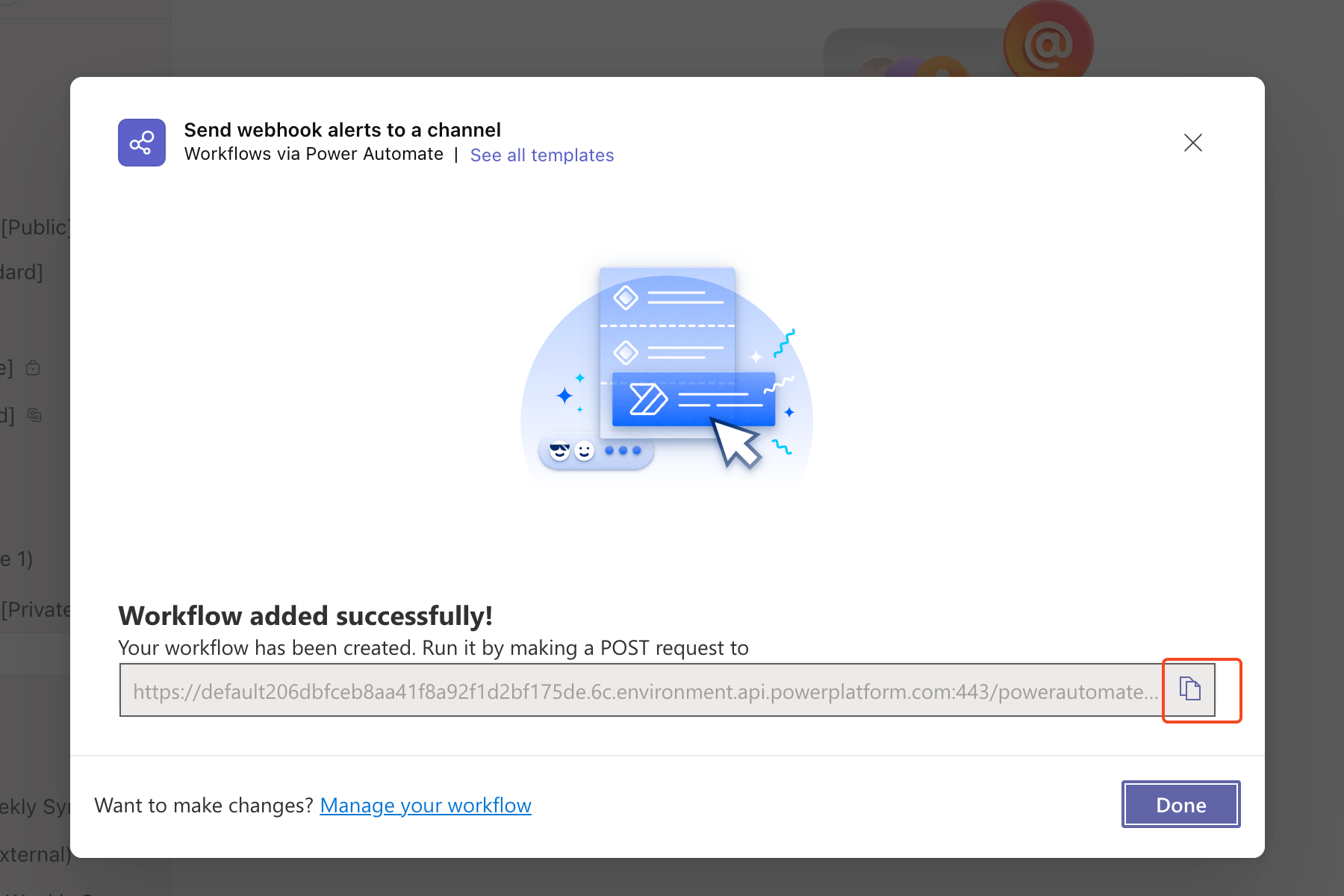
2. Find the template option "Send webhook alerts to a channel". Click on this template.
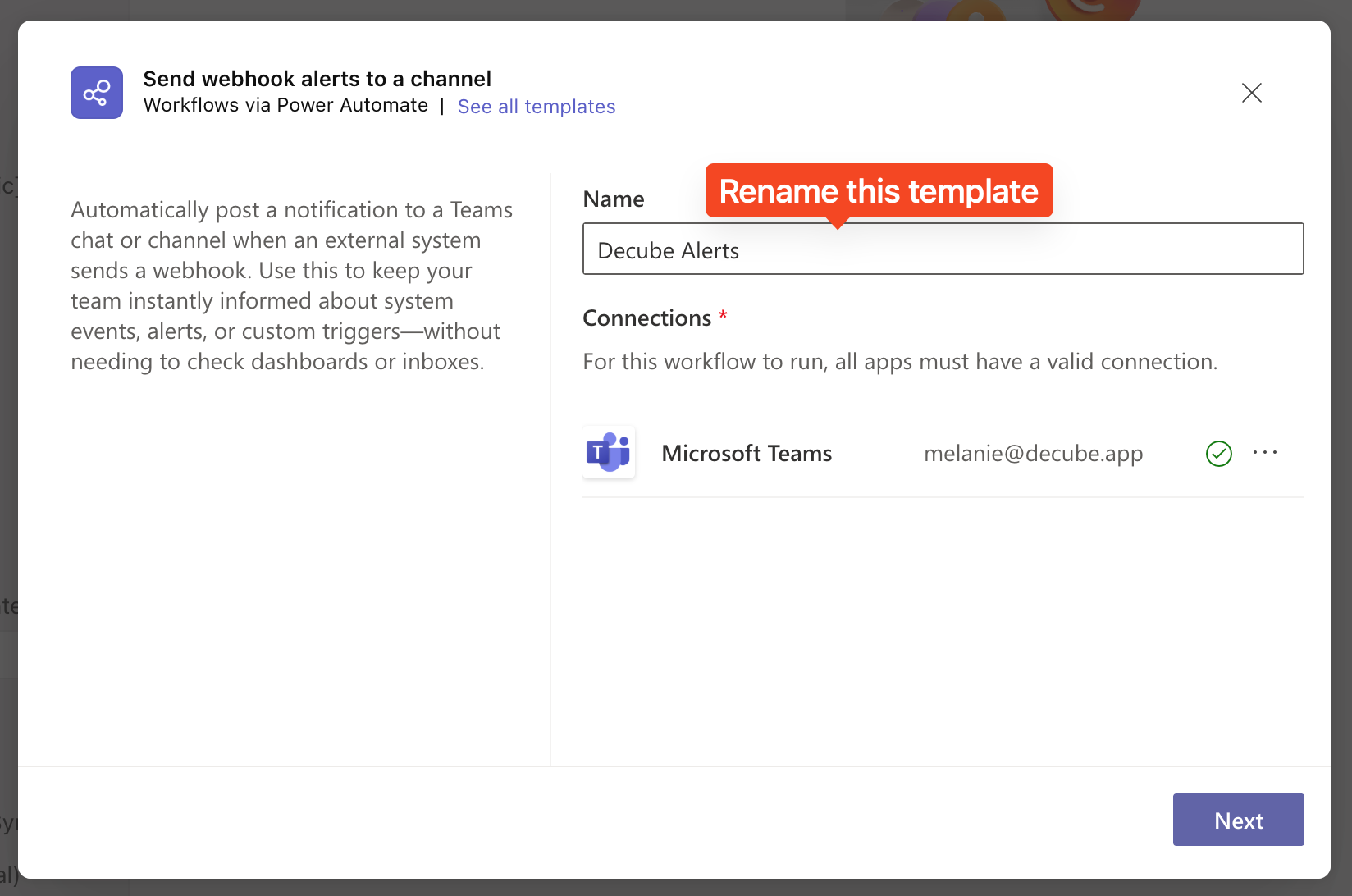
3. You can rename the template to "Decube Alerts". This allows you to search for the right template in the future in the Workflows app.
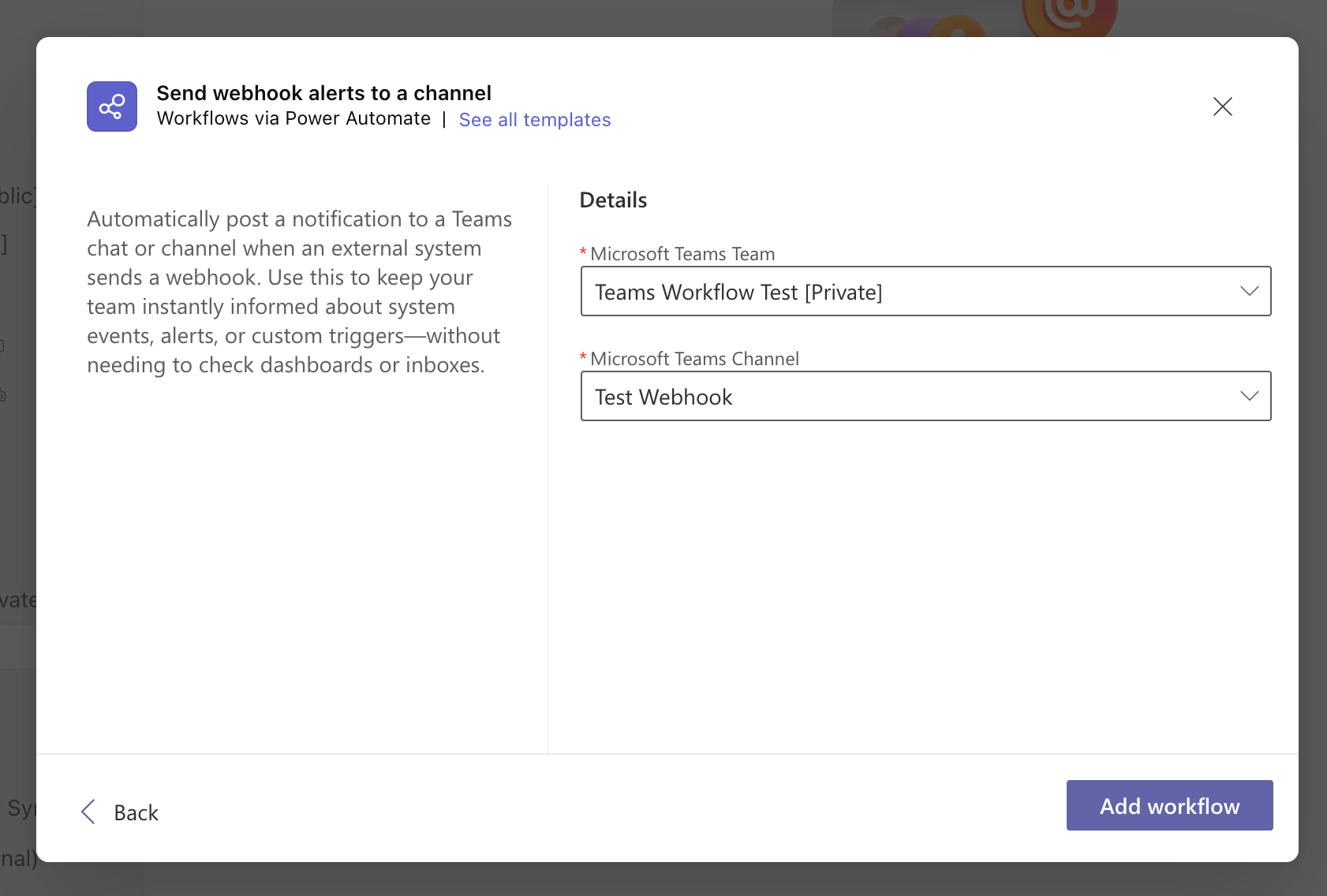
4. Select which Team and Channel to add the Workflow to.
5. You will then be presented with the Webhook URL to copy. Copy this URL to be used in the next section to add into Decube.
## Add Microsoft Teams to a rule
1. In **Set up alert channels**, select **MS Teams** on a channel row.
2. Paste the URL into **MS Teams Webhook URL**.
3. Click **Test alert**, then check the Teams channel for the sample message.
## Frequently Asked Questions
**Can one URL serve several rules?**
Yes. The URL points at a channel, so any number of rules can deliver to it. Give each rule a distinct name so you can tell which one produced a given message.
**The alerts stopped arriving. What changed?**
A Workflow can be turned off, or lose its owner when that person leaves the organization. Open the Workflows app on the channel and confirm the Workflow is still enabled, then regenerate the URL and update the rule if needed.