> For the complete documentation index, see [llms.txt](https://docs.decube.io/llms.txt). Markdown versions of documentation pages are available by appending `.md` to page URLs; this page is available as [Markdown](https://docs.decube.io/data-quality/how-to-set-up-monitors/set-up-data-job-job-failure-monitors.md).
# Modify Job Failure Monitors (Data Job)
Here's how you manage monitors for Job Failure (Data Jobs).
{% hint style="info" %}
**Job Failure Monitors** for Data Jobs are created automatically by Decube upon connecting ETL-type sources that has Data Jobs.
{% endhint %}
> **What is Data Job/Job Failure Monitoring?**
>
> It tracks **failed jobs** to identify processing issues, ensuring data pipelines run smoothly:
>
> * Job Failure does not require **manual creation** like other monitors. Instead, it is configured and adjusted separately.
> * This avoids confusion about when and how these monitors should be used.
To effectively detect anomalies in your data transformation, our system offers specialized Data Job/Job Failure monitors. Here's a step-by-step guide to get you started:
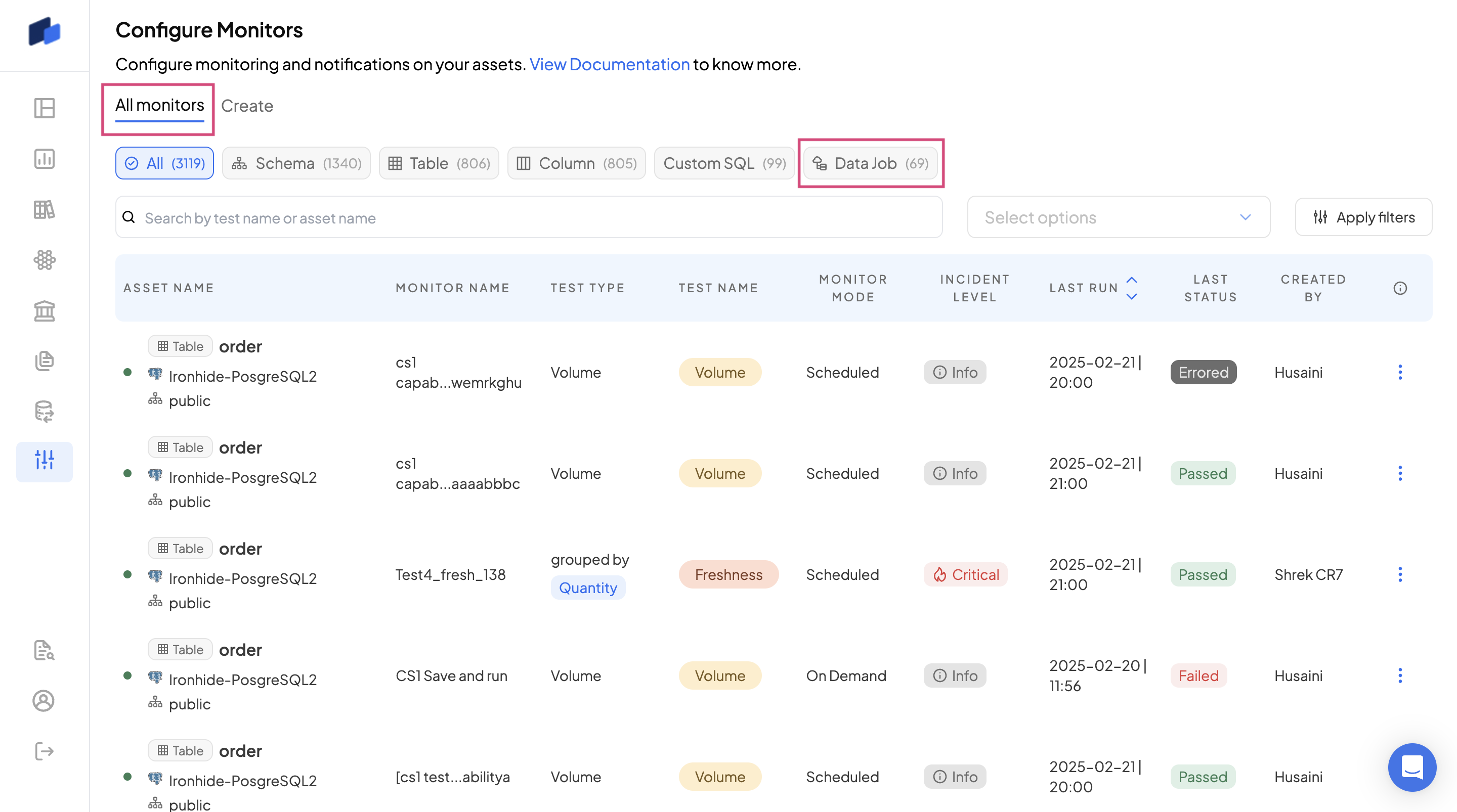
1. **Navigate to the Config Page, All Monitors tab:** This is where all monitor types options are available under Test Name column.
2. **Locate the "Job Failure/Data Job" Pill:** Among the various pills, you'll find a pill labeled "Data Job" under the "All Monitors" tab. You can also apply filter for Job failure test name.
3. **Select the "Job Failure/Data Job" Pill:** By selecting this, you'll initiate the modifying monitor setup process for your Data Job/Job Failure monitor
All Monitors tab and Data Job pill
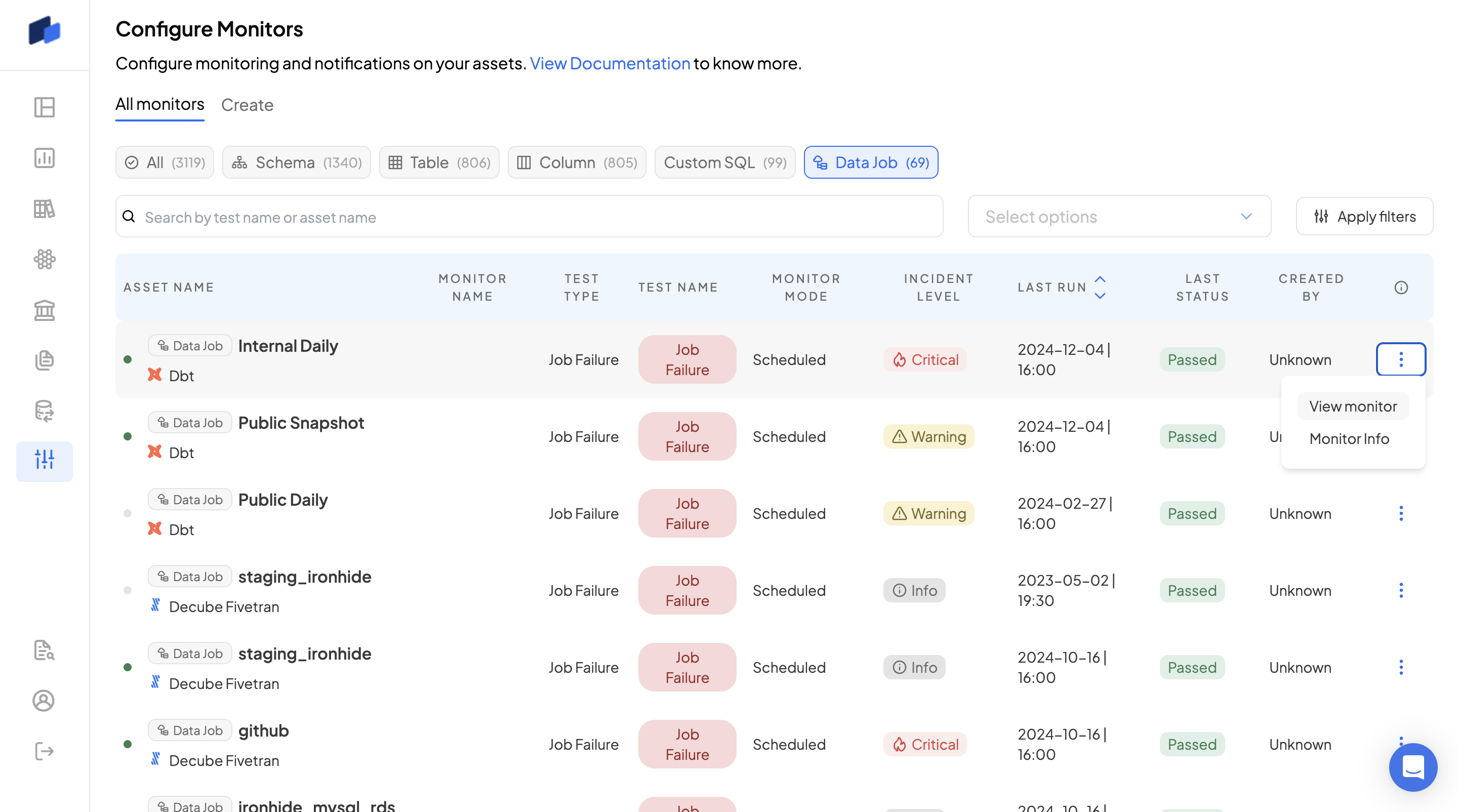
Data Job/Job Failure Monitors
### Data Job/Job Failure Monitoring Setup
Click the ellipsis button ( : ) on the right side of every Data Job/Job Failures assets you aim to modify. Then, select the 'View Monitor' option.
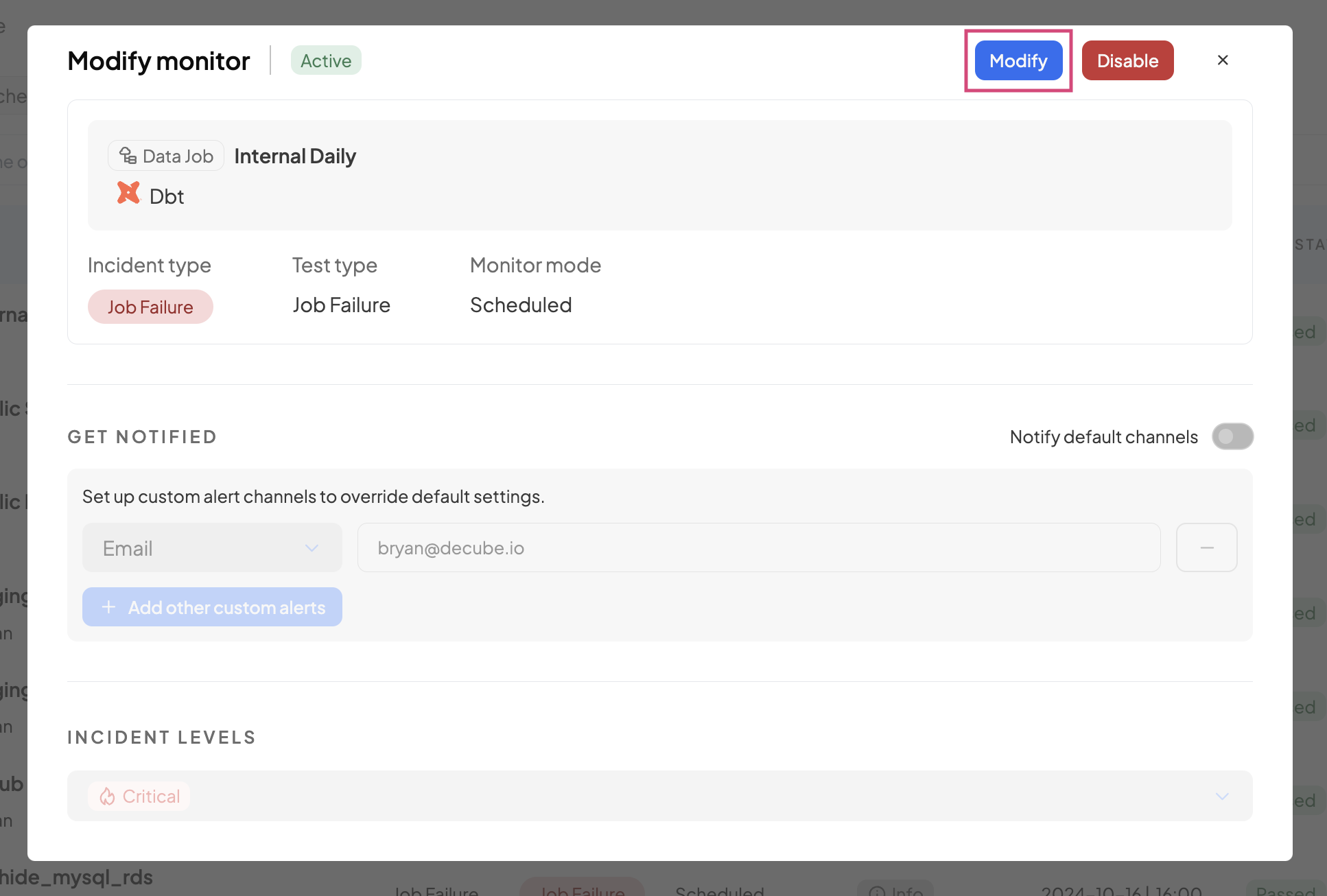
Click on 'Modify' button to enable the form.
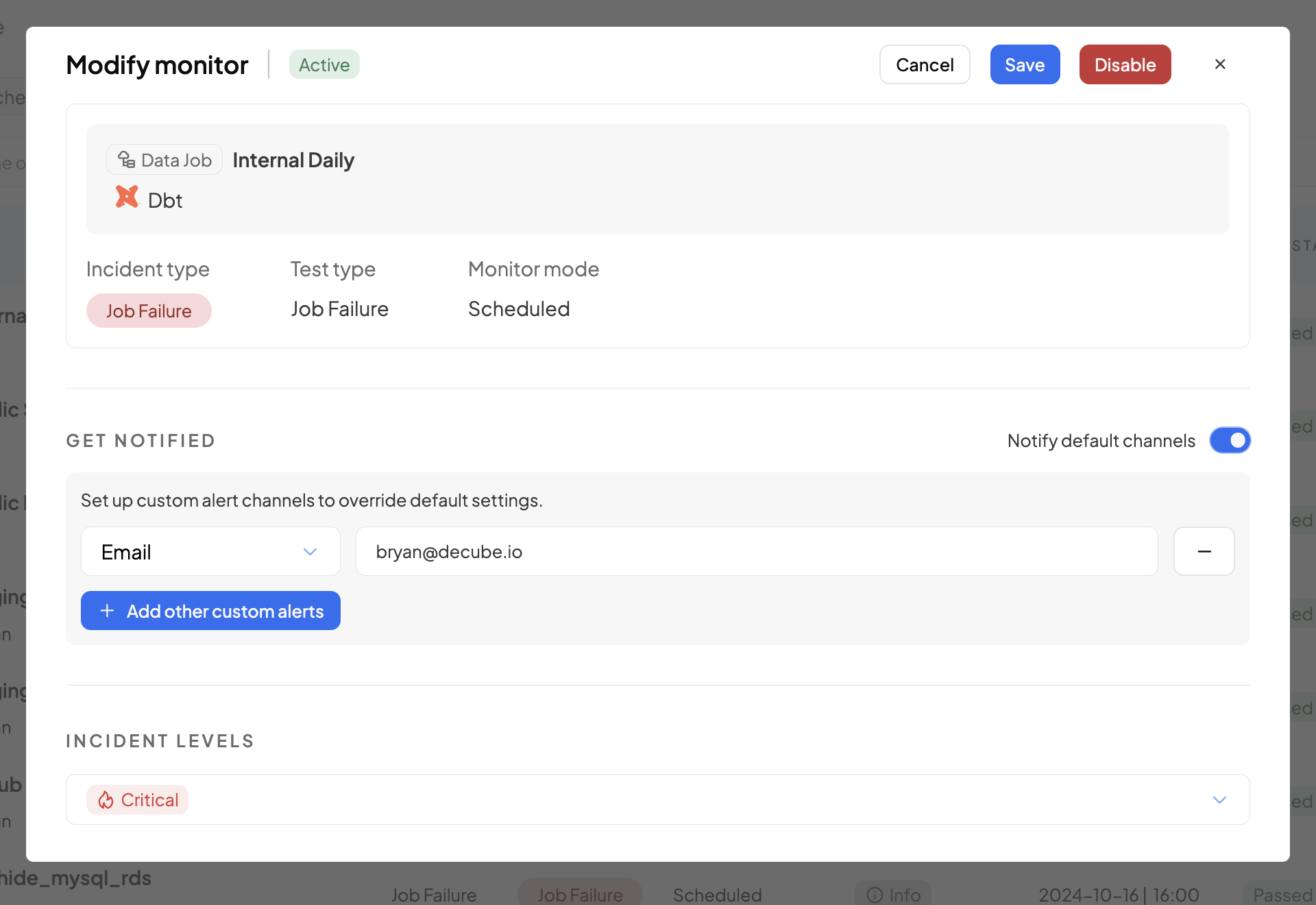
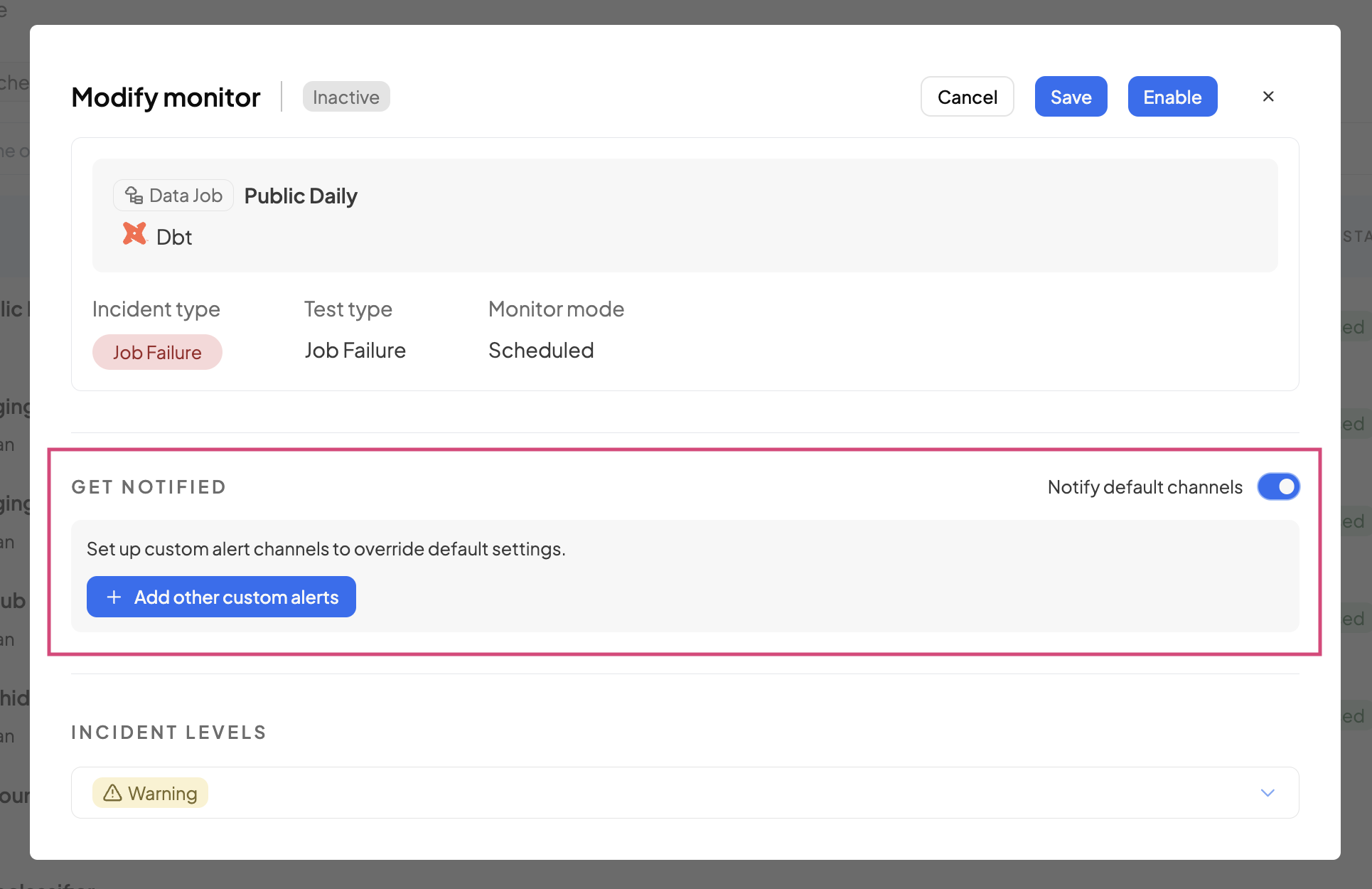
Modify monitor modal form
Then, you can modify the Get Notified and Incident Levels settings of the monitor. Click 'Save' and you will see a toast message that says, "Monitor updated successfully".
You may also disable or enable the monitor:
* if disabled, the monitor will be Inactive.
* if enabled, the monitor will be Active.
Disabled monitor
Enabled monitor
### Notifications and Custom Alerts
Locate the "Notify default channels" toggle to receive automatic notifications for detected incidents simply by just switching the toggle to the "on" position.
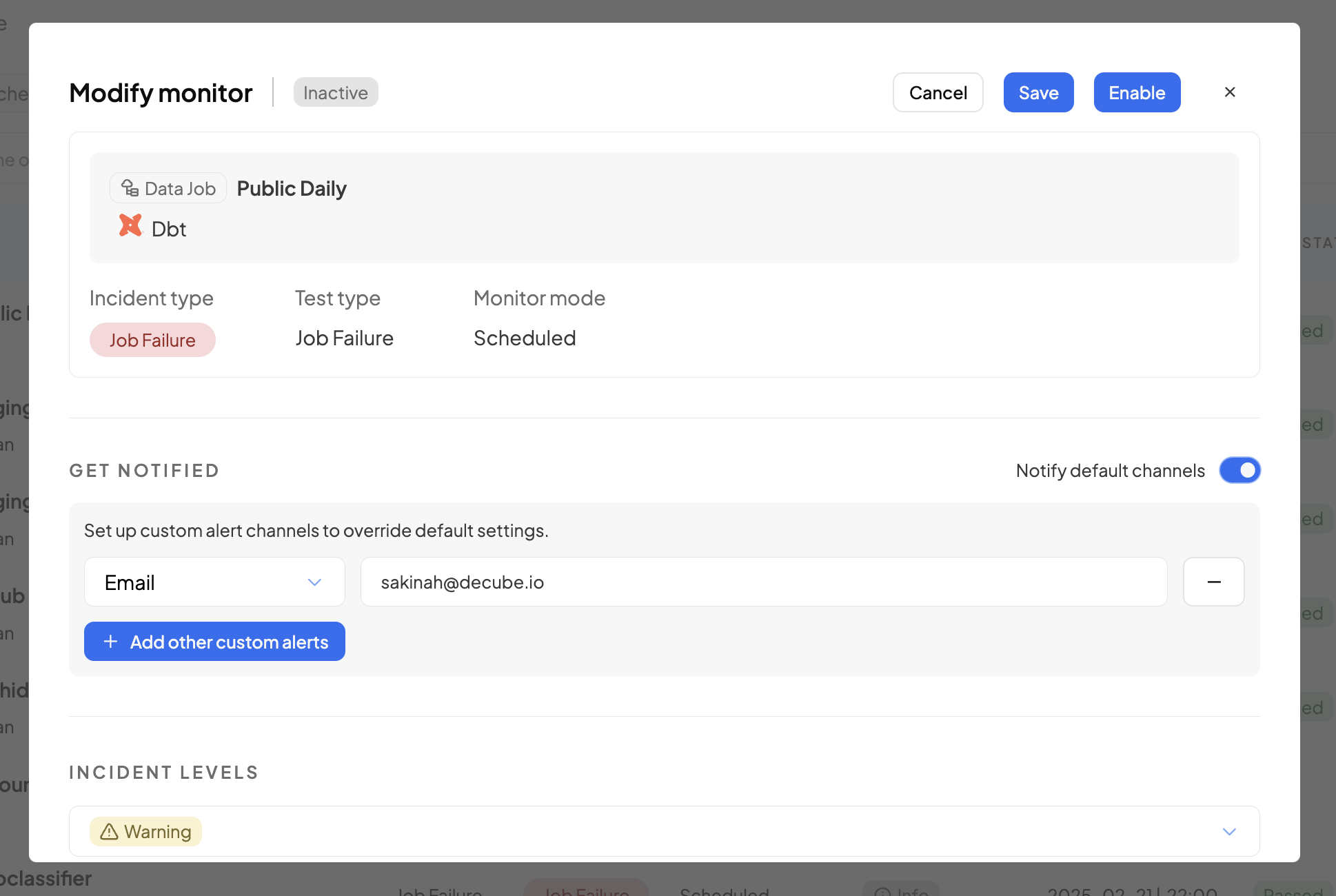
To personalize your alert settings in the monitor, especially if you wish to be notified of any anomalies or incidents via specific channels like Email or Slack, simply click on the "+ Add other custom alerts" button.
Upon checking the "+ Add other custom alerts" button, an overlay will appear below for you to set up your preferred medias to be notified.
{% hint style="info" %}
Ensure the email you've provided is correct and remember to "Authorize" Slack within the "My Accounts" section under "Config Settings" tab -> "Config Alerts" This will allow you to send custom alerts to your designated channel.
{% endhint %}