# Custom Scheduling For Monitors
Take control of your monitoring frequency with flexible scheduling options that align with your data update patterns and business requirements.
{% hint style="info" %}
**Applies to:** Scheduled monitor mode only. On-demand monitors run manually when needed.
{% endhint %}
## Scheduling Strategy Guide
Choose the right frequency based on your data characteristics and monitoring needs:
### Quick Selection Guide
| **Frequency** | **Best For** | **Use Cases** | **Resource Impact** |
| ------------------ | ------------------ | ---------------------------------------- | ------------------- |
| **Every 1 Hour** | Real-time systems | Live dashboards, streaming data | High |
| **Every 3 Hours** | Active pipelines | ETL processes, API feeds | Medium-High |
| **Every 6 Hours** | Regular updates | Business reporting, batch jobs | Medium |
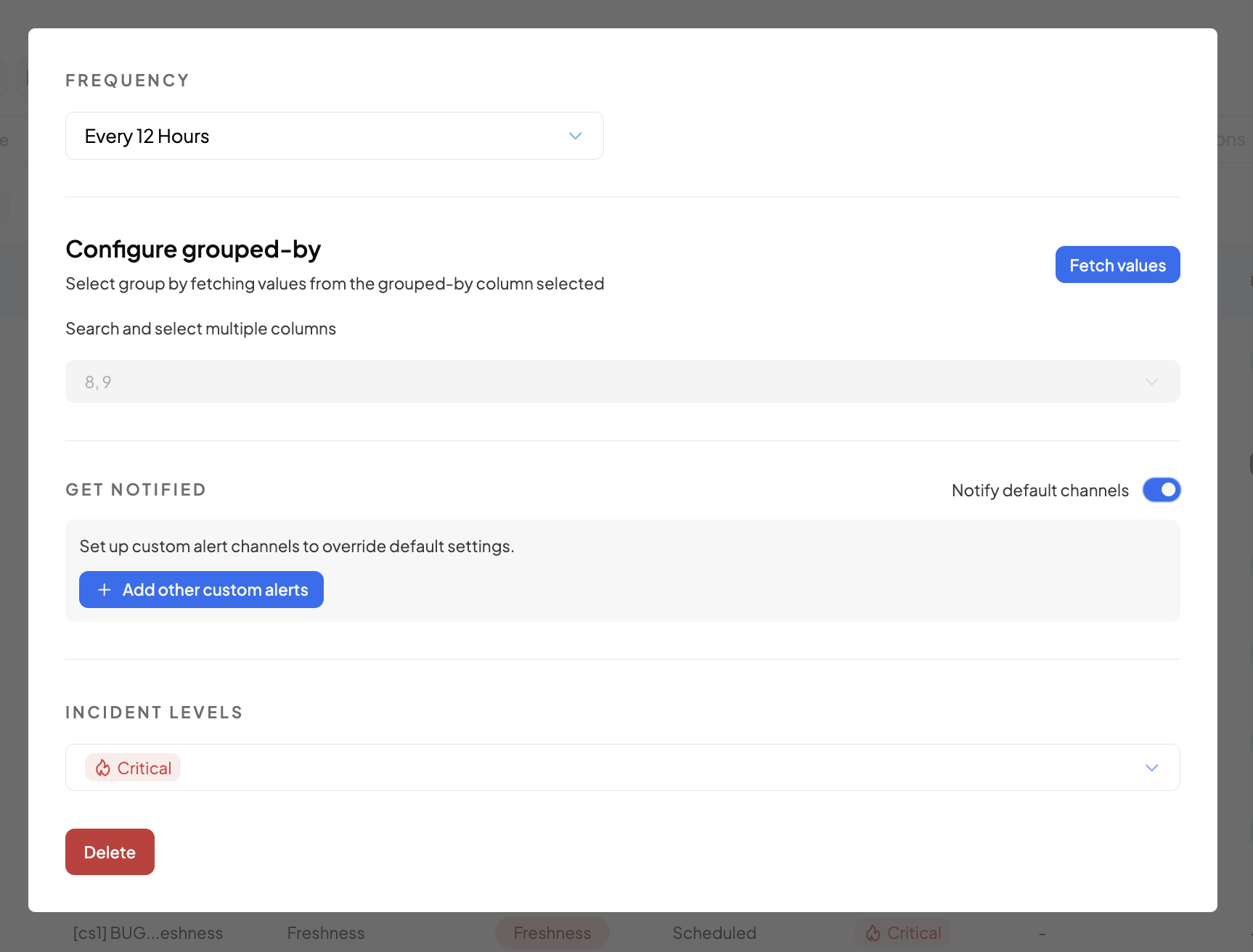
| **Every 12 Hours** | Daily processes | Nightly ETL, twice-daily updates | Low-Medium |
| **Daily** | Standard reporting | Business reports, compliance checks | Low |
| **Weekly** | Periodic data | Reference data, slow-changing dimensions | Very Low |
| **Monthly** | Historical data | Archive validation, trend analysis | Minimal |
***
## Frequency Options
### High-Frequency Monitoring (1-6 Hours)
**Every 1 Hour** ⚡
* **Ideal for**: Real-time dashboards, streaming data, critical business metrics
* **Consider**: High resource usage, potential for alert fatigue
* **Best practices**: Use for truly time-sensitive data only
**Every 3 Hours** 🔄
* **Ideal for**: Active ETL pipelines, frequent API updates
* **Consider**: Good balance of coverage and resource efficiency
* **Best practices**: Monitor business hours vs. off-hours patterns
**Every 6 Hours** ⏰
* **Ideal for**: Regular batch processes, scheduled data loads
* **Consider**: Covers most business scenarios without overwhelming
* **Best practices**: Align with your ETL schedule timing
### Standard Monitoring (12 Hours)
**Every 12 Hours** 📊
* **Ideal for**: Daily business processes, twice-daily updates
* **Consider**: Catches issues within business day cycles
* **Best practices**: Schedule to align with business operations
***
## Advanced Scheduling Options
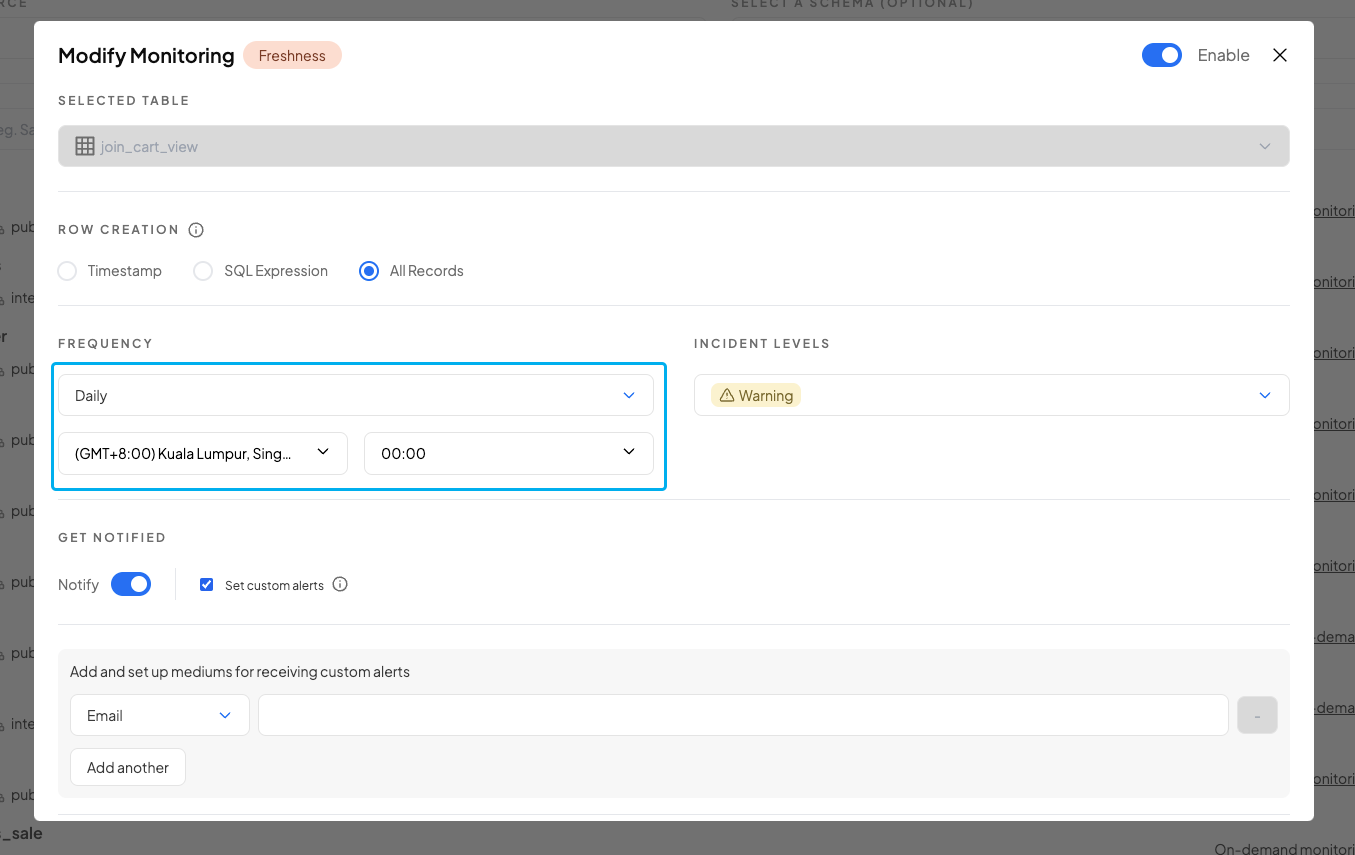
### Daily Scheduling 📅
For precise control over daily monitoring:
**Configuration Options:**
* **Timezone Selection**: Align with your business timezone
* **Specific Time**: Set exact execution time (24-hour format)
* **Business Day Alignment**: Consider peak vs. off-hours monitoring
**Best Practices:**
* Schedule after ETL completion times
* Avoid peak business hours for large table scans
* Consider data team working hours for incident response
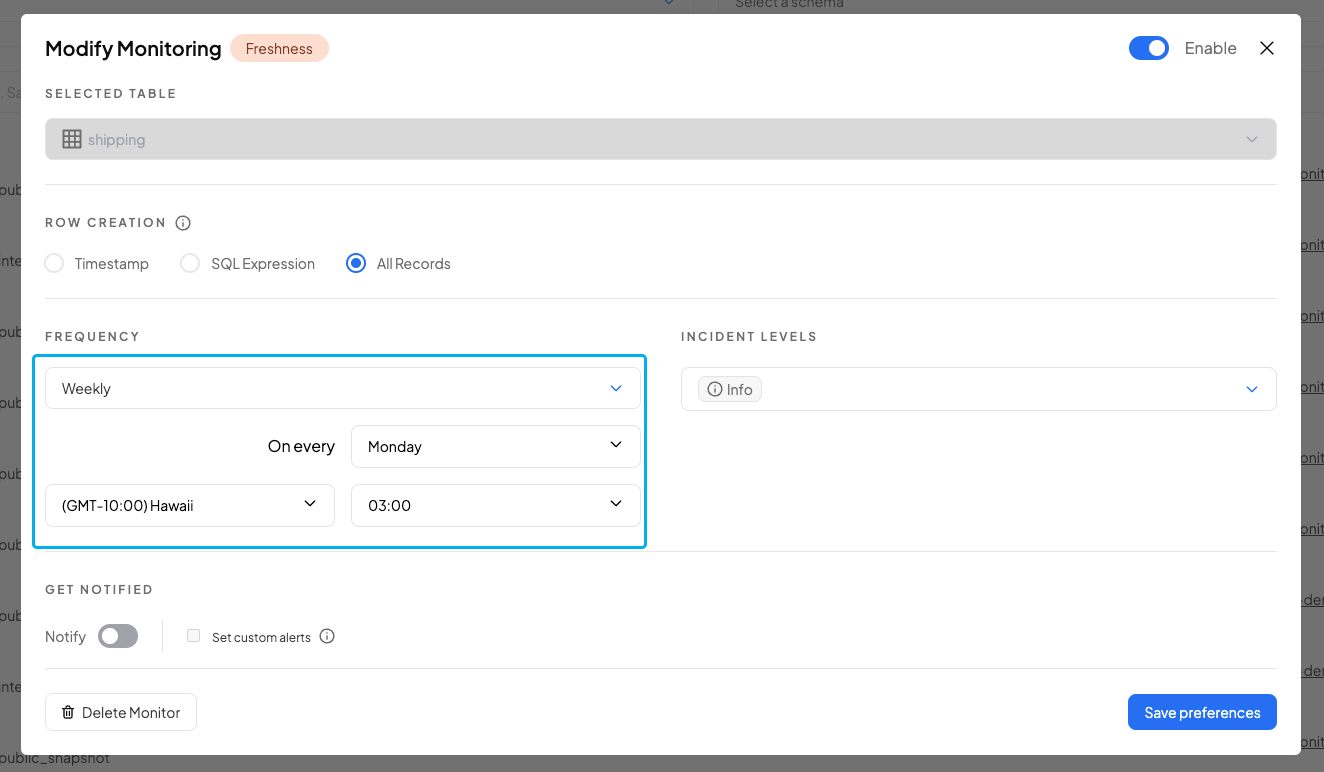
### Weekly Scheduling 📋
**Configuration Options:**
* **Day Selection**: Choose specific day of the week
* **Timezone**: Business timezone alignment
* **Time**: Specific execution time
**Ideal Use Cases:**
* Reference data validation
* Weekly report quality checks
* Slow-changing dimension monitoring
* Compliance reporting
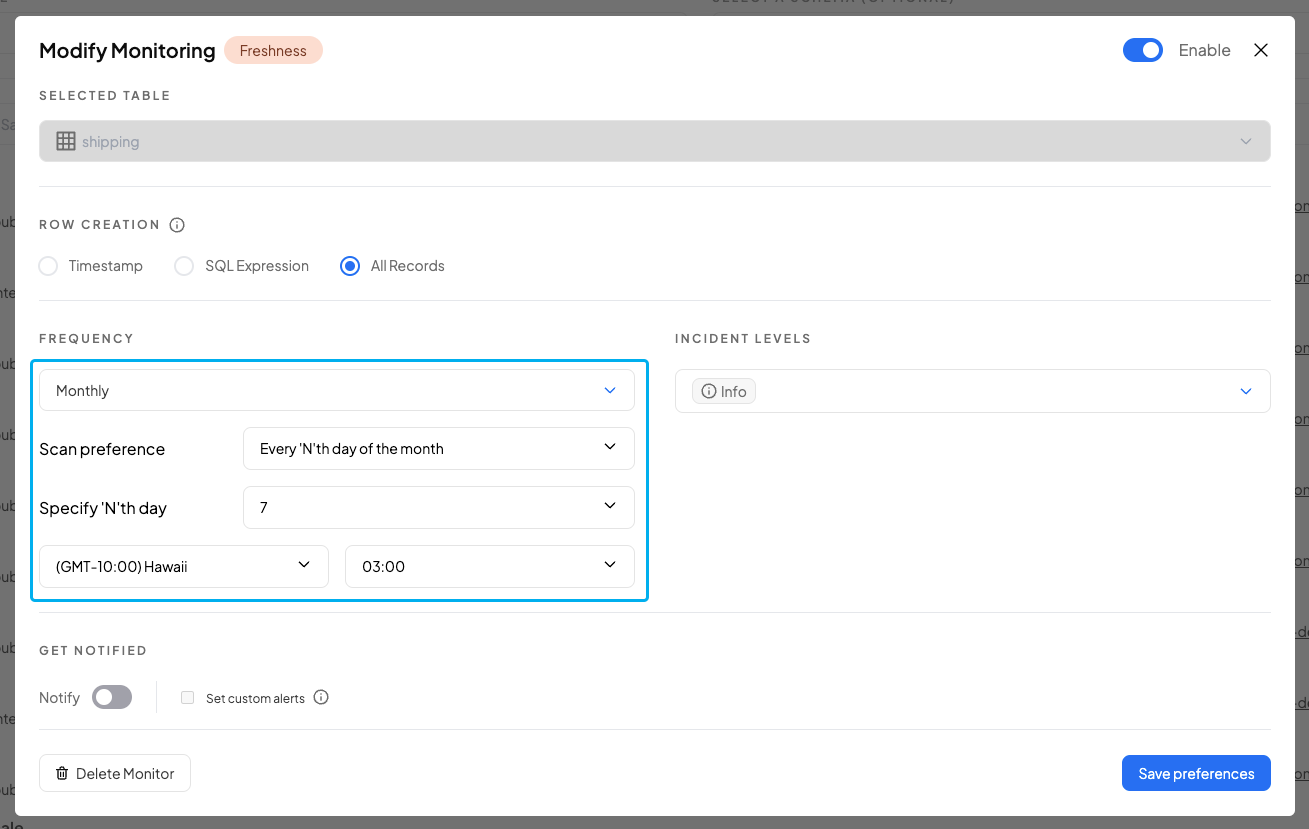
### Monthly Scheduling 📆
**Configuration Options:**
* **Day Selection**:
* Every "N"th day of the month (up to 28th)
* Every last day of the month (for 30th/31st requirements)
* **Timezone**: Business alignment
* **Time**: Specific execution time
**Ideal Use Cases:**
* Month-end financial data
* Periodic compliance checks
* Historical data validation
* Archive integrity monitoring
***
## Setup Process
### Accessing Custom Scheduling
1. **Navigate** to Config > Create
2. **Select** your monitor type (Freshness, Volume, Field Health, Custom SQL)
3. **Choose** "Scheduled" monitor mode
4. **Configure** frequency in the setup form
### Configuration Steps
1. **Select Base Frequency** from the available options
2. **Configure Details** (for Daily/Weekly/Monthly):
* Set timezone
* Choose specific day (Weekly/Monthly)
* Set execution time
3. **Validate Settings** against your data patterns
4. **Save Configuration** and monitor performance
***
## Best Practices & Optimization
### 🎯 Frequency Selection Strategy
**Start Conservative:**
1. Begin with lower frequencies (Daily/Weekly)
2. Monitor alert patterns and false positives
3. Increase frequency only if needed for timely detection
**Match Data Patterns:**
* **Hourly data updates** → Every 1-3 hours monitoring
* **Daily ETL jobs** → Daily monitoring (post-job completion)
* **Weekly batch loads** → Weekly monitoring
* **Monthly reporting** → Monthly monitoring
### ⚡ Performance Considerations
**Resource Management:**
* High-frequency monitoring increases compute costs
* Balance monitoring coverage with resource efficiency
* Use grouped-by monitoring for dimension-specific needs
**Alert Management:**
* Higher frequency = more potential alerts
* Ensure alert channels can handle volume
* Consider incident severity levels appropriately
***
## Related Topics
{% content-ref url="available-monitor-modes" %}
[available-monitor-modes](https://docs.decube.io/data-quality/monitor-configuration-settings/available-monitor-modes)
{% endcontent-ref %}
{% content-ref url="../incident-model-feedback" %}
[incident-model-feedback](https://docs.decube.io/data-quality/incident-model-feedback)
{% endcontent-ref %}
**Need Help?** Contact for guidance on optimal scheduling strategies for your specific data architecture.